How to deposit to Hyperliquid
Fiat cannot be deposited directly. Apply the 4% referral discount first, then buy USDC on a centralized exchange and bridge it in.
EVENTCODE· No sign-up · One wallet connection · Applied before your first trade
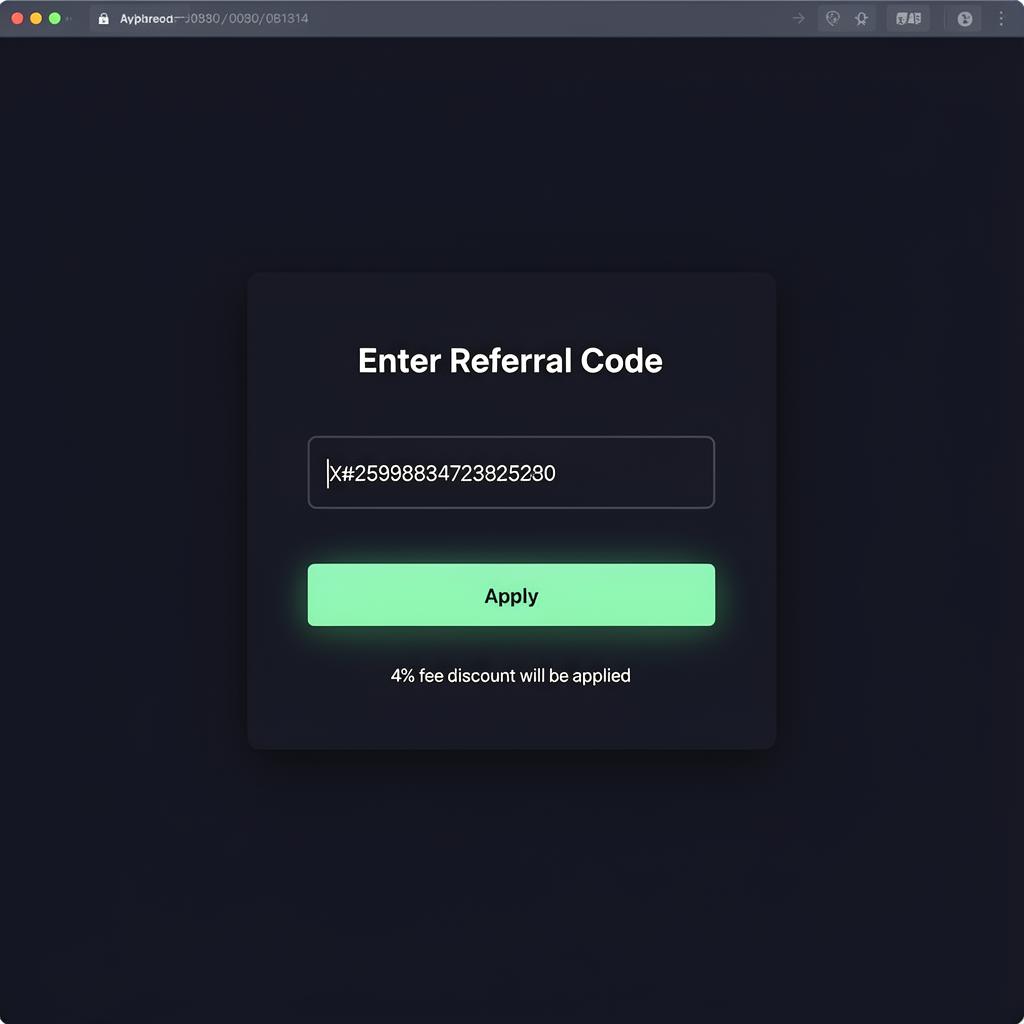
Enter referral code EVENTCODE before your first trade
In the app, open Referrals → Enter Code and type EVENTCODE to receive a 4% trading fee discount. Even if you have already deposited, the code still counts as long as it is entered before your first trade. Once a wallet has placed its first trade the discount can no longer be applied, so enter the code immediately after depositing.
What to deposit, and on which network
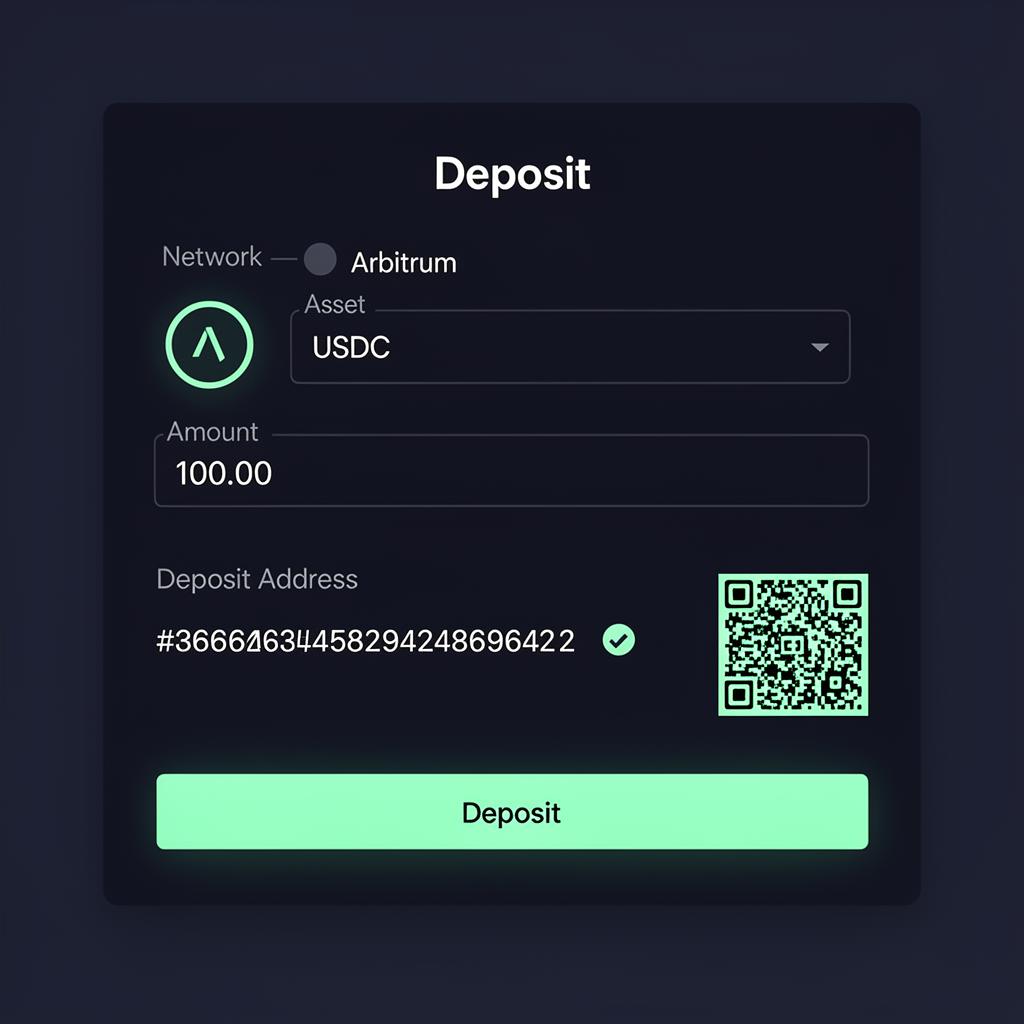
Margin is denominated in USDC. Thanks to the Router Nitro integration, deposits can arrive via Ethereum, Base, Polygon, Solana, Sui, Tron, and more — 30+ networks in total. Older guides that mention an Arbitrum-only requirement are out of date.
| Network | Asset | Minimum |
|---|---|---|
| Arbitrum | USDC | 5 USDC |
| Solana | SOL | 0.2 SOL |
| Ethereum / Base / Polygon / Sui / Tron / others | USDC etc. | Varies by network |
Apply the referral code → CEX → Hyperliquid
The five-step path most users follow. Applying the referral discount can only be done once, before your first trade — do it first.
Apply the fee-discount code first
If you access the app directly and place a trade first, the 4% discount can no longer be applied to that wallet. Use the button above (or enter code EVENTCODE via Referrals → Enter Code) before doing anything else. It is not retroactive.
Buy USDC on a centralized exchange
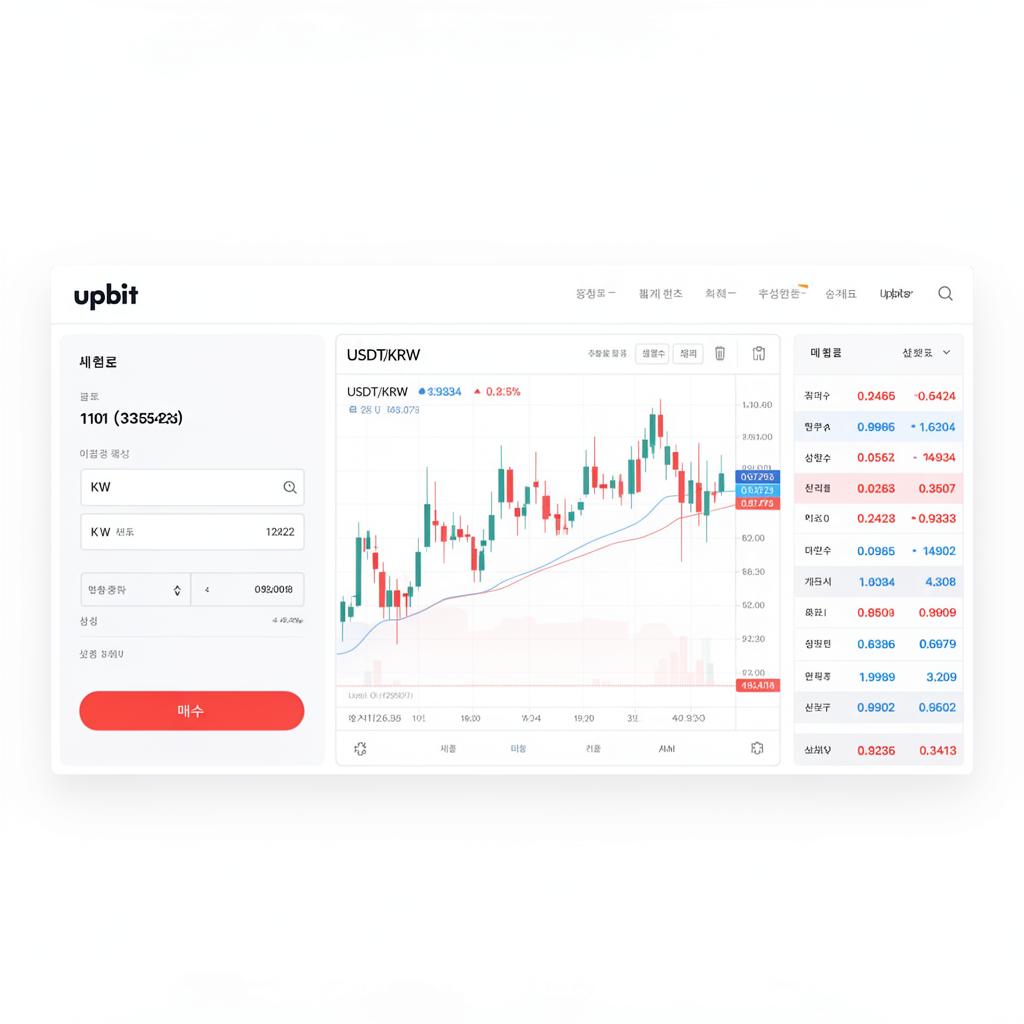
Purchase USDC (or USDT to swap to USDC in the next step) on your preferred centralized exchange — for example Binance, Coinbase, Kraken, or OKX.
Withdraw to your self-custody wallet
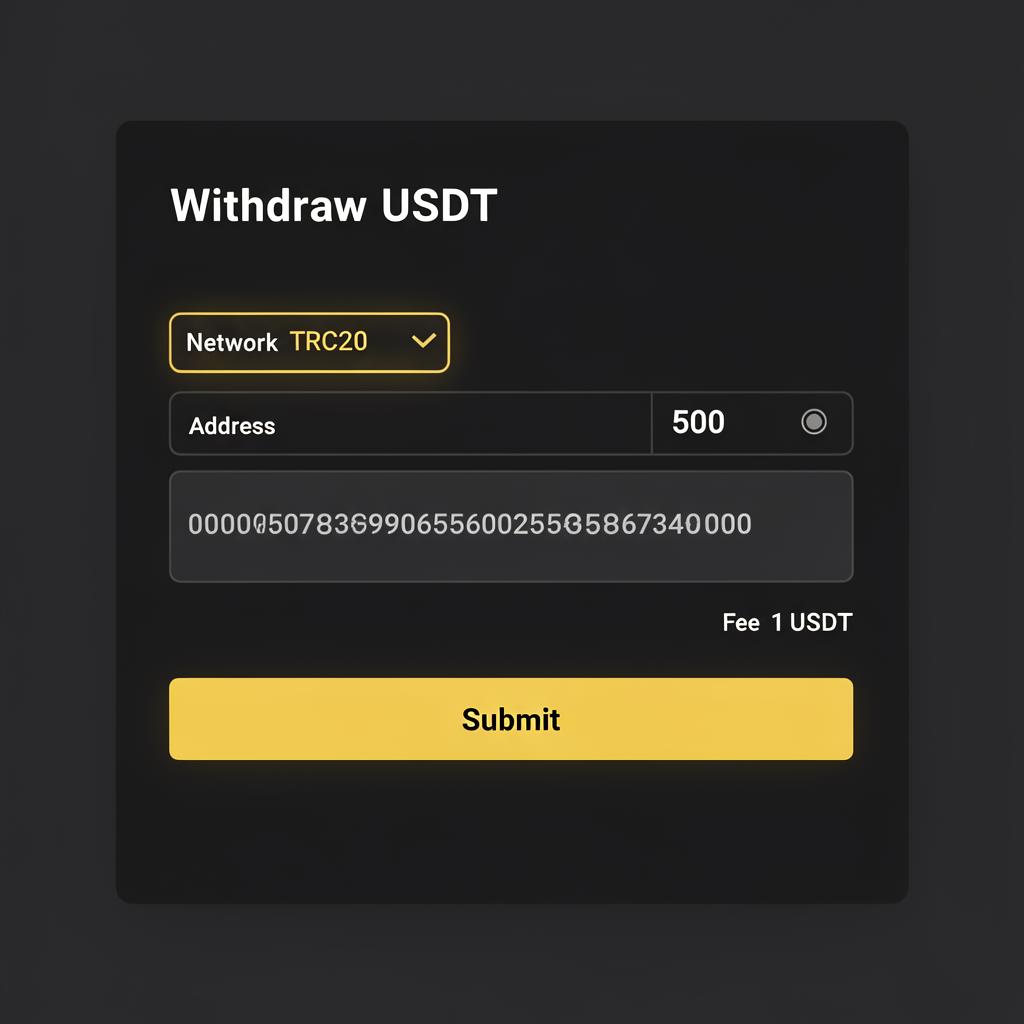
Withdraw USDC from your CEX to your self-custody wallet address. Always double-check both the destination address and the network before confirming.
Confirm the network in your wallet
Make sure your wallet is on the same network you used for the withdrawal (Arbitrum is common). If the networks do not match, the funds arrive on a different chain.
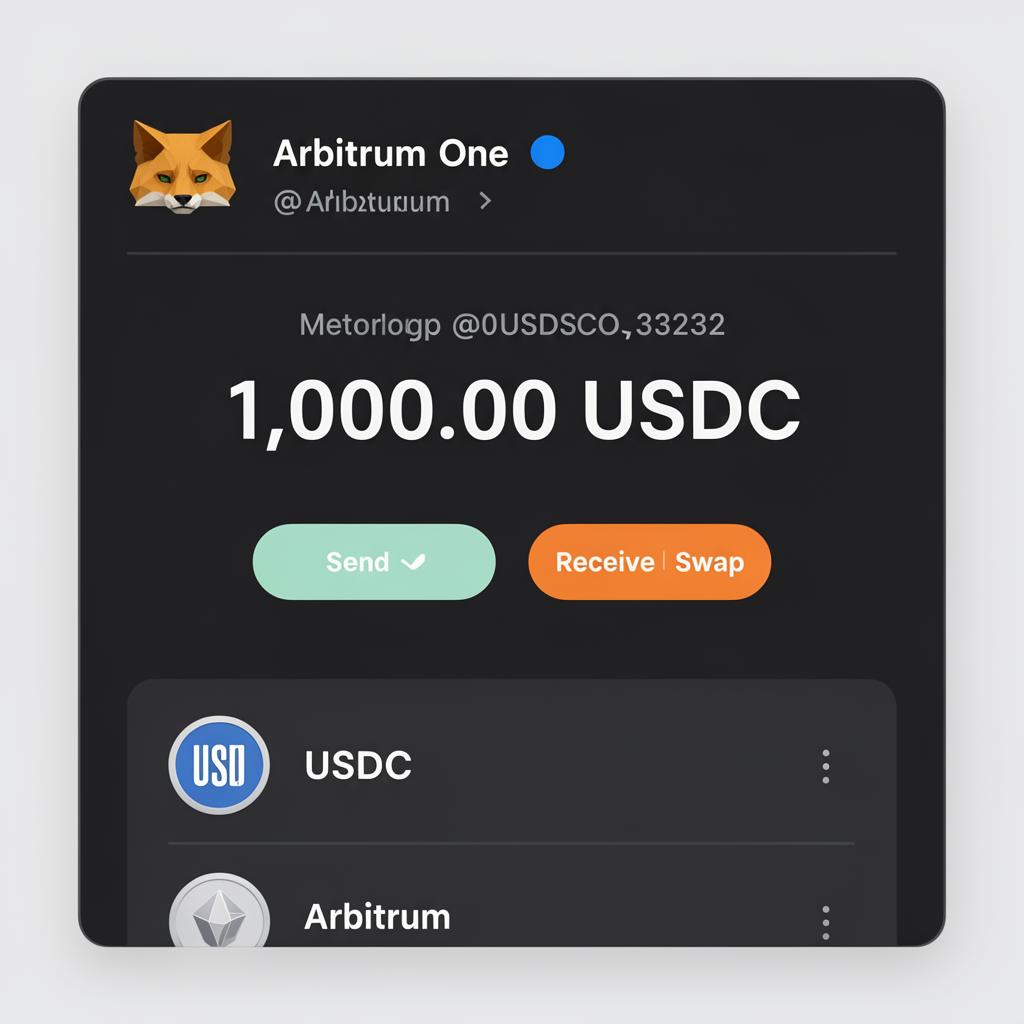
Deposit into Hyperliquid
Click Deposit in the app. The modal defaults to USDC · Arbitrum. Enter an amount and press Deposit to sign the transaction. First-time depositors also sign an approve() transaction once. Deposit fees are zero; you only pay the network gas (typically well under $1 on Arbitrum). Balances usually reflect within 1–2 minutes.
Avoid these three mistakes
Deposit done — place your first order
Continue to the perpetual futures interface guide.
EVENTCODEThe 4% discount only applies if the code is entered before your first trade.
Next: Perpetual futures guide · Withdrawal path: How to withdraw.